Skip to content
PhotoBench portrait crop logoPhotoBench

Photo help · lighting

Illumination Appears to Be Poor in a DS-160 Photo

Understand the DS-160 poor-illumination message, review likely lighting problems and check your original photo before deciding to retake it.

Your photo · your application route

Photo stays in this browser

Print at 2 × 2 inches (50.8 × 50.8 mm exact). Keep your real appearance and original background. The official page also describes this as 51 × 51 mm.

JPEG, PNG, WebP or HEIC/HEIF · up to 20 MB. Browser support varies for HEIC. No photo is sent to a server.

Start with your real photo.

We locate your face, suggest framing and flag possible pose problems. You review the remaining requirements.

Local analysis & measured facts

Know what this check can tell you.

A correct file size does not make a photo acceptable. This check does not replace the authority’s final review.

Lighting issue selected: inspect for side light, overhead shadows, backlight and overexposure. Retake with soft, even front light. See retake steps.

Choose a photo to see measured format, byte size and pixel dimensions, alongside the items that need your confirmation.

01 · Know the requirement

The message points to lighting risk, not a known single cause.

A face can look acceptable on a bright screen but still contain strong side shadows, dark eye sockets, a bright background or washed-out detail. We do not know the portal’s internal scoring algorithm. Treat the message as a prompt to review the original and improve capture conditions.
02 · Choose your next step

Retake with soft light in front of you.

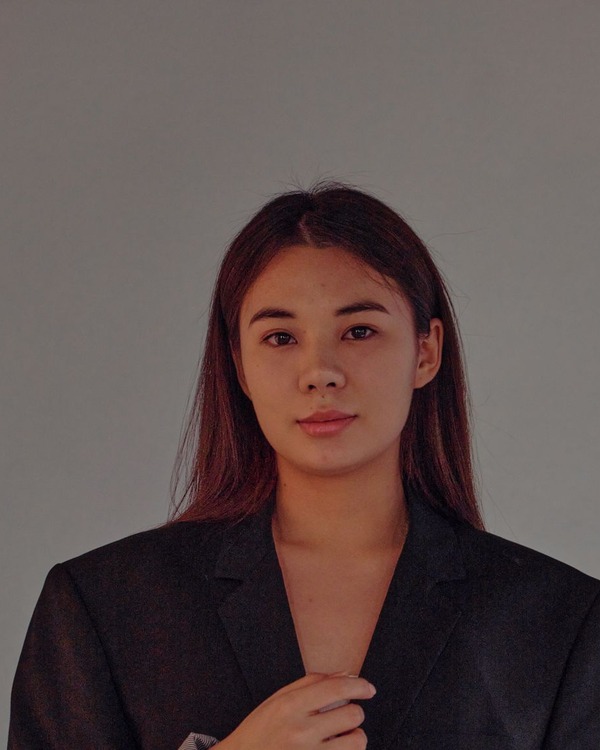
Face a large window with indirect light. Avoid a window behind you and direct sunlight across one side of your face. Move away from the wall to reduce background shadows, keep the camera at eye level and ask someone else to take the photo.

03 · Review before submission

Recheck both the photo and the file.

Inspect both eyes, the nose and chin shadows, skin detail and the background. Then check JPEG format, square dimensions and bytes. Repeatedly changing compression will not remove a shadow that was present when the photo was taken.

Teaching examples · simulated effects on a licensed demonstration photo

Teaching illustration of side light
Side light
Teaching illustration of overhead light
Overhead light
Teaching illustration of backlight
Backlight
Teaching illustration of soft front light
Soft front light

Illustrations explain capture problems. They are not official examples, detector results or evidence of government acceptance. Retake the real photo rather than applying these effects.

Official sources · checked 2026-11-06

Requirements can change. The authority’s current instructions and final review take precedence.

Questions about this task

Before you continue.

Why does the portal complain when the photo looks bright?

Overall brightness can hide uneven illumination, glare or lost facial detail. Inspect the original at a normal screen brightness and check both sides of the face.

Can I fix this by increasing brightness?

A global adjustment cannot reliably recover clipped detail or remove cast shadows. Retaking under even front light is the clearer next step.

Should I use flash?

Direct flash can create glare or a hard shadow behind the head. Prefer soft, even lighting and review the resulting photo carefully.

Could a smaller JPEG remove this message?

It may fix a separate byte-size problem, but compression does not correct the captured lighting. Address technical limits and lighting as separate checks.

Will your checker confirm the illumination is acceptable?

No. This version explicitly marks lighting Unable to assess. It supplies review steps without claiming to reproduce the government algorithm.

What if a new photo is rejected again?

Review all official photo examples, verify the exact application route and consider a professional photo service. Follow the portal or consulate instructions for the next submission.